How a Browser Works: A Beginner-Friendly Guide to Browser Internals
Topics to Cover
What a browser actually is (beyond “it opens websites”)
Main parts of a browser
User Interface: address bar, tabs, buttons
Browser Engine vs Rendering Engine
Networking: how a browser fetches HTML, CSS, JS
HTML parsing and DOM creation
CSS parsing and CSSOM creation
How DOM and CSSOM come together
Layout (reflow), painting, and display
Very basic idea of parsing (using a simple math example)
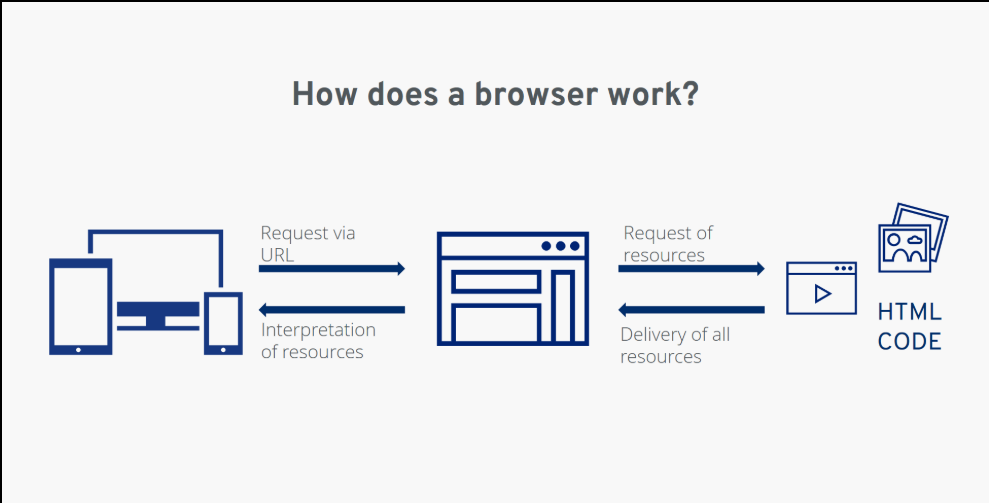
What happens after I type a URL and press Enter?
Have you ever wondered what actually happens when you type a website address like www.google.com and hit enter?
Within seconds, a full webpage appears — images, text, buttons, videos — everything neatly arranged.
But behind the scenes, It is fetching files, understanding code, building structures, and painting pixels on your screen.
Let’s break this down step-by-step in the simplest way possible.
1 . What a browser actually is (beyond “it opens websites”)
A browser is a software application that helps us access and interact with websites on the internet.
Examples:
Google Chrome
Mozilla Firefox
Microsoft Edge
Safari
But technically, a browser is like a translator + painter:
It translates HTML, CSS, JS into something it understands
It paints that understanding visually on your screen
So a browser’s job is:
Fetch website files
Understand the code
Display it beautifully
when we type youtube.com in Chrome, the browser app loads the YouTube website and displays it on our screen.
In simple terms, a browser is the bridge between users and websites — it helps us request, understand, and view web content visually.
2. Main parts of a browser
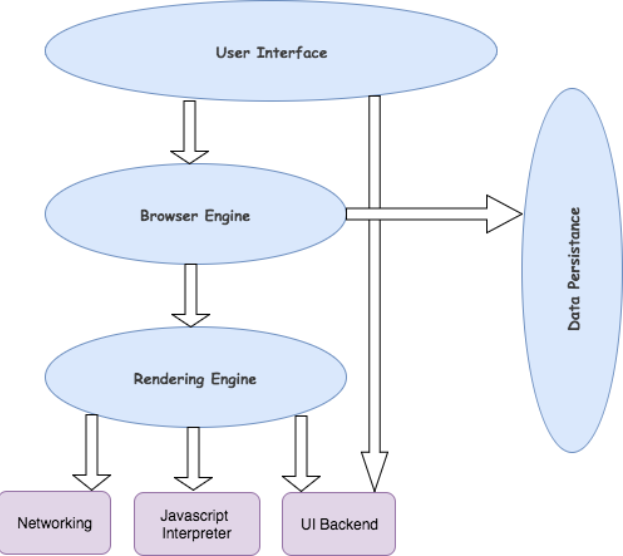
A browser is made up of multiple components working together.
User Interface (UI)
Browser Engine
Rendering Engine
Networking Layer
JavaScript Engine
Storage
User Interface
This is the part you see and interact with:
Address bar
Back / Forward buttons
Tabs
Bookmarks
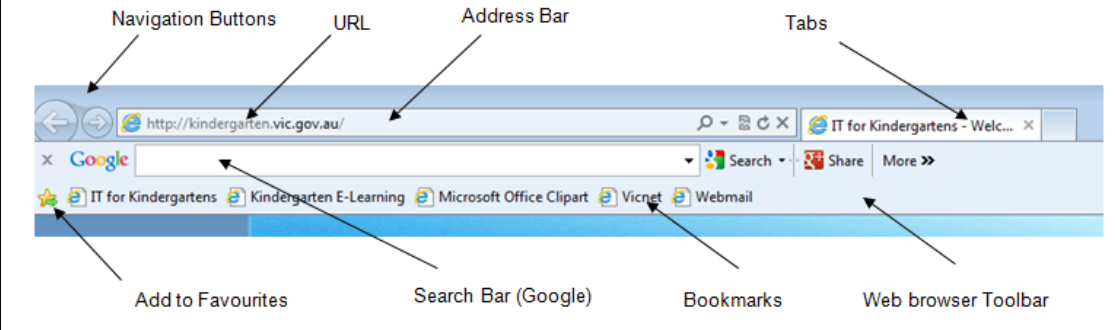
The User Interface is the visible part of the browser that we interact with daily.
It acts as a bridge between the user and the browser’s internal processing system.
Whenever we type a URL, open a new tab, or click the back button, these actions are handled by the User Interface — which then communicates the request to the browser engine behind the scenes.
It does not render webpages — it only collects user input and displays navigation controls.
The actual rendering happens inside the Rendering Engine, not the User Interface.
Browser Engine vs Rendering Engine
Many beginners get confused between the Browser Engine and the Rendering Engine because both work closely together.
But their responsibilities are different.
Think of the browser as a team where each part has a specific role.
Browser Engine
Many beginners get confused between the Browser Engine and the Rendering Engine because both work closely together.
But their responsibilities are different.
Think of the browser as a team where each part has a specific role.
Rendering Engine
he Rendering Engine is responsible for actually displaying the webpage. It:
Reads HTML structure
Applies CSS styles
Builds the page layout
Draws content on the screen
This is the component that converts code into visuals we see in the browser.
Example : Google Chrome → Blink(rendering engine)
Mozilla Firefox → Gecko(rendering engine)
Networking Layer
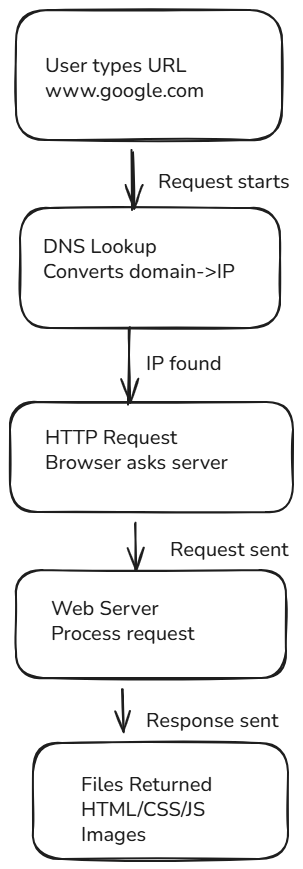
Once you type a URL and press Enter, the browser’s first job is to fetch the website data from the internet. But the browser doesn’t directly understand domain names like: www.youtube.com Instead, it needs an IP address (like a house address on the internet).
So the browser performs these steps:
Contacts the DNS server → gets IP address
Sends an HTTP/HTTPS request to that server
Server responds with files:
HTML → structure
CSS → styling
JavaScript → behavior
Images / Videos → media content
You can think of this like ordering food online:
You place order → URL
Restaurant prepares → Server
Delivery arrives → Website files
Now the browser has the raw materials to build the webpage.
This entire process happens in milliseconds before the page appears on screen.
HTML parsing and DOM creation
After receiving HTML, the browser starts reading it. But it doesn’t display HTML directly. Instead, it converts HTML into a structured format called: DOM (Document Object Model)
DOM is like a tree structure where every HTML element becomes a node.
This tree structure helps the browser understand relationships between elements before displaying them.
Example HTML:
HTML
<body>
  <h1>Hello</h1>
  <p>Welcome</p>
</body>

CSS
Body
 ├── H1
 └── P
This structure helps the browser understand:
Parent elements
Child elements
CSS parsing and CSSOM creation
Next, the browser processes CSS.CSS defines how elements should look:
Colors → Fonts → Spacing → Layout
The browser converts CSS into another structure called: CSSOM (CSS Object Model)
CSSOM stores all styling rules in a tree format, similar to DOM. So now browser has:
DOM → structure
CSSOM → styling
How DOM and CSSOM come together
Now comes an important step. Browser combines:
DOM + CSSOM
Render Tree . Render tree contains: Only visible elements
For example:
<display: none>elements are ignoredHidden elements don’t appear
This tree is used for visual rendering.
Layout (reflow), painting, and display
Layout(reflow)
Once the Render Tree is created, the browser knows:
What elements exist
Which elements are visible
What styles apply to them
But it still doesn’t know Where each element should appear and How big each element should be. So the browser performs a step called:
Layout (also known as Reflow)
During layout, the browser calculates — Width and Height of elements, Position on the page and Spacing between elements.
For example, the browser calculates whether two elements sit side-by-side or stack vertically.
Painting
In this phase, the browser fills visual details like Text color, Background color, Borders, Shadows, Images , Fonts
If Layout is about placement, Painting is about appearance.
Display
Here, the browser Combines all painted elements, Converts them into pixels and Sends them to the screen.
This is when you actually see the webpage. So when a page loads visually, it means all previous steps are completed.
Very basic idea of parsing (using a simple math example)
Till now we’ve seen how the browser converts HTML into DOM and CSS into CSSOM.
But one question comes here — how does the browser actually understand this code?
This is where parsing comes into the picture.
In simple words, parsing means breaking something into smaller meaningful parts so that it can be understood properly.
To make this easier, let’s take a simple math example.
Step 1 — Consider this expression
2 + 3 × 4
At first glance, it looks like a simple calculation. But if someone solves it left to right:
2 + 3 = 5
5 × 4 = 20
This answer is wrong.
Step 2 — Understanding priority
In mathematics, multiplication has higher priority than addition.
So the correct way to solve is:
3 × 4 = 12
2 + 12 = 14
This happens because of the BODMAS rule, which defines the priority order in which mathematical operations should be solved.
Step 3 — How parser understands it
Before solving, the parser breaks the expression into smaller parts called tokens:
[ 2 ] [ + ] [ 3 ] [ × ] [ 4 ]
Step 4 — Parse Tree Formation
The expression is structured like this
      +
     / \
    2   ×
       / \
      3   4
The parser solves inner nodes first — then outer ones.
Parsing helps the browser understand code by breaking it into smaller meaningful structures before rendering the webpage.
Conclusion
Understanding how a browser works might feel overwhelming at first, but when we break it down step by step, it becomes much easier to grasp. From typing a URL to seeing a fully rendered webpage, the browser performs multiple operations — networking, parsing HTML and CSS, building the render tree, calculating layout, and finally painting pixels on the screen.
The key takeaway is not to memorize every internal component, but to understand the overall flow. Knowing this journey helps us appreciate how our code turns into visual interfaces and also enables us to write more efficient and optimized web applications.
Next time you open a website, you will know that behind that instant page load lies a powerful process working silently in the background — transforming code into experience in just a matter of seconds.
Comments
Join the discussionNo comments yet. Be the first to comment.